Running Moltbot Locally Without Accidentally Letting It Eat Your Laptop (or Your Network)
Docker makes Moltbot easier to run, but “containerized” doesn’t automatically mean “safe.” This guide walks you through the official setup script, verification, provider setup, and the practical security moves that keep everything local and locked down.
Common myth: “If it’s in Docker, it’s automatically safe.”
Here’s the thing… Docker is a great seatbelt, but it’s not a force field. You can still do dumb stuff like publish a gateway port to the internet, bake API keys into images, or let a container chew through your CPU like it’s an all-you-can-eat buffet.
So let’s do this the right way: run Moltbot locally, in Docker, and keep it locked down enough that you can sleep at night.
Why people get twitchy about running bots locally

If you’re tech-savvy, you already know the vibe: bots have credentials, network access, and sometimes tool execution. That’s a spicy combo. The risk usually isn’t “Moltbot is evil.” It’s “I exposed the gateway to the public internet” or “I didn’t notice the container restarting for two hours because my API key was wrong.”
Problem: You want a local Moltbot setup that’s predictable, isolated, and hard to accidentally expose.
Solution: Use the official repo + the automated Docker setup script, keep the gateway bound to loopback, and monitor resources like an adult.
Step 0: Prereqs (don’t skip this, Future You will thank you)
- Docker + Docker Compose installed and working. Test it:docker --version docker compose version
- Git (to clone the repo)
- An AI provider account (OpenAI / Anthropic / or self-hosted like Ollama) and credentials
- Minimum machine resources: 4GB RAM + 2 CPU cores recommended (more is nicer). You’ll monitor with docker stats.
- Windows? Use WSL2 + Ubuntu for the least pain.
Sources: Moltbot repo and setup guidance recommend Docker/Compose, provider credentials, and resource monitoring for stability and troubleshooting. [1][2][3]
The safe path: run the official Docker setup
Look, I’ll be honest… most “security problems” in self-hosted setups come from people freelancing the installation. So my opinion: start with the automation first, then customize after you’ve got a baseline that works.
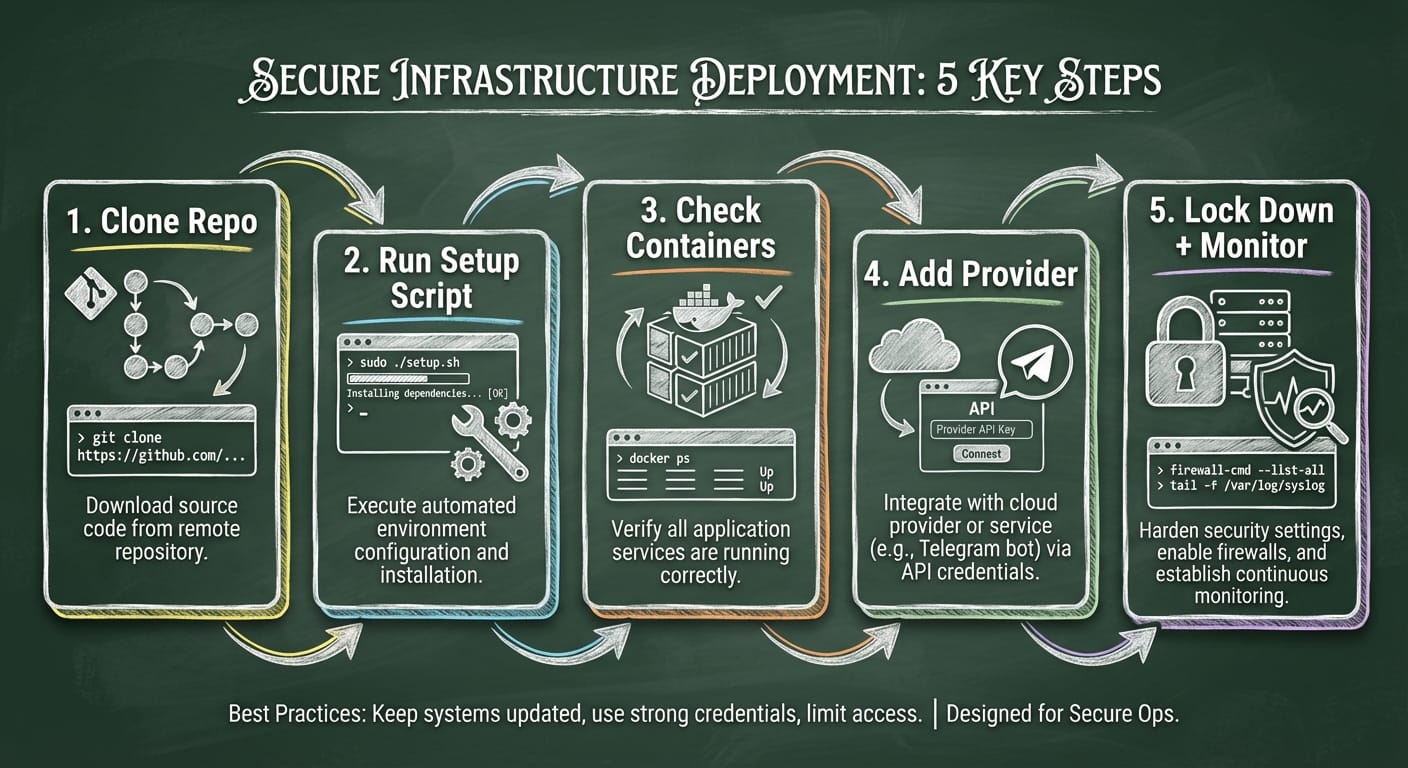
Step 1) Clone the official repo
git clone https://github.com/steipete/moltbot.git cd moltbotThis pulls the latest Moltbot code straight from the source. (Recent guides reference versions around v2026.1.24.) [2][4]
Step 2) Run the automated Docker setup script
./docker-setup.shThis script is the “do the right thing” button. Under the hood, it:
- Builds the image locally (so you’re not blindly running some mystery image)
- Launches an onboarding wizard for credentials, gateway mode, channels (like Telegram), and daemon setup
- Starts the gateway container via Docker Compose in detached mode
- Prints a gateway token for connecting services
Heads up: you may see older naming references (like “clawdbot”) in some configs/docs. That’s not you going crazy. [1][2]
Step 3) Confirm it’s actually running
docker compose psYou’re looking for moltbot-gateway with status Up. If it’s not, check logs:
docker logs moltbot-gatewayMost early failures are boring stuff: invalid API keys, missing provider tokens, misconfigured env values. [1]
Step 4) Add a provider (example: Telegram)
docker compose run --rm moltbot-cli providers add --provider telegram --token YOUR_BOT_TOKENThen approve pairings when prompted:
docker compose run --rm moltbot-cli pairing approve telegram <code>Source: Moltbot CLI usage and provider flows described in setup guidance. [1]
Step 5) Keep it safe: loopback binding + monitoring
Here’s what most people miss… security isn’t just “did it start.” It’s “what can reach it?”
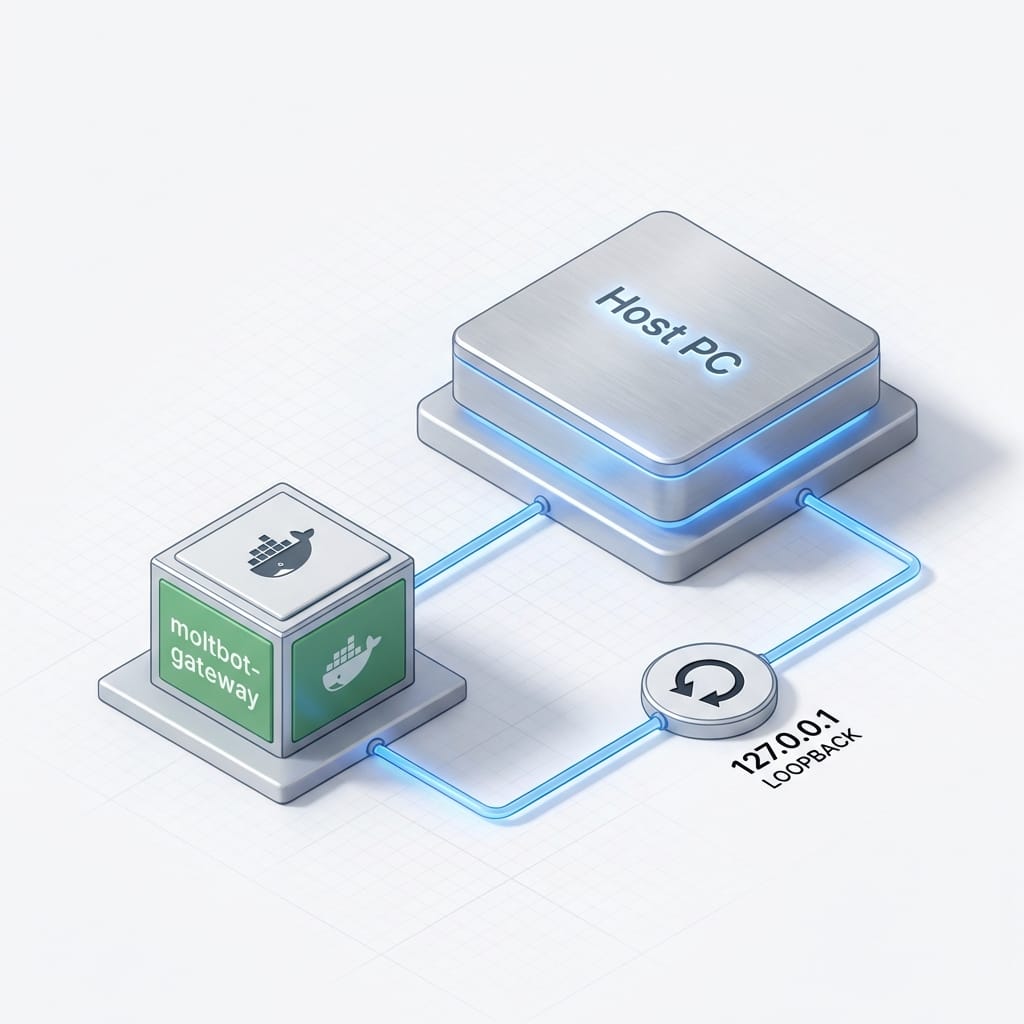
- Bind the gateway to loopback (127.0.0.1) so it’s only reachable from your machine. Avoid exposing ports publicly unless you really know what you’re doing.
- Monitor resources so the container doesn’t quietly melt your laptop:docker stats moltbot-gateway
If you need remote access, use a tunnel like Cloudflare Tunnel or ngrok rather than opening ports directly. (Direct exposure is where “local bot” becomes “internet bot,” and then you’re in a different sport entirely.) [2][1]
Pro Tips Box (stuff that’ll save you time and headaches)
Pro tips:
- Start read-only with tools/permissions: If Moltbot can run commands, treat that like giving it car keys. Begin with limited capabilities and expand intentionally. [6]
- Restart cleanly after changes:docker compose restart
- Update like you mean it:git pull ./docker-setup.shThe script generally preserves config while updating build/run steps. [1]
- Windows = WSL2: You’ll have a better time using Ubuntu on WSL2 than fighting Windows filesystem quirks. [2]
Common Mistakes (aka “don’t do this”)
- Publishing the gateway port to 0.0.0.0: That’s the “hello internet, please scan me” setting. Keep it on loopback unless you’re using a secure tunnel. [2]
- Ignoring container restarts: If it keeps restarting, it’s usually auth/API/provider config. The logs will tell you. [1]
- Assuming Docker = fully secure: Docker is isolation, not immunity. Keep credentials out of images, and treat networking with respect.
- Running without watching resources: AI-related workflows can spike CPU/RAM. Use docker stats early, not after your fans sound like a drone. [1][3]
FAQ
Do I need Docker Compose, or is plain Docker fine?
Use Docker Compose. Moltbot’s workflow (gateway + CLI tasks) is designed around Compose commands in the official guidance. [1][2]
What if I don’t have internet or don’t want to send data to a cloud AI?
You can point Moltbot at a self-hosted model like Ollama. It’s mentioned as an option for “no internet” scenarios. [3]
How do I know if it’s safe enough?
The baseline: gateway bound to 127.0.0.1, no public ports, credentials stored securely (not baked into images), and you’re watching logs + docker stats. [2][1]
Summary Bullets (what you should actually do today)
- Clone the official repo and run ./docker-setup.sh (don’t reinvent installation).
- Verify with docker compose ps and debug with docker logs moltbot-gateway.
- Add your provider using the CLI (Telegram example included).
- Keep the gateway bound to 127.0.0.1 and avoid public port exposure.
- Monitor CPU/RAM with docker stats so surprises don’t sneak up on you.
Sources
- [1] Moltbot repository and Docker/Compose setup references: https://github.com/steipete/moltbot
- [2] Setup guidance emphasizing ./docker-setup.sh, WSL2 for Windows, and loopback binding: https://github.com/steipete/moltbot
- [3] Provider requirements and resource expectations (monitoring, self-hosted options like Ollama): https://github.com/steipete/moltbot
- [4] Version mention in recent guides (referenced in community notes around v2026.1.24): https://github.com/steipete/moltbot
- [6] General safety guidance around limiting tool permissions/auditing command execution in agentic systems: https://docs.docker.com/engine/security/