Install Moltbot in Docker (Local PC) Without Losing Your Mind
A practical, no-fluff walkthrough to run Moltbot locally in Docker using Compose—plus the common mistakes that make people hate containers.
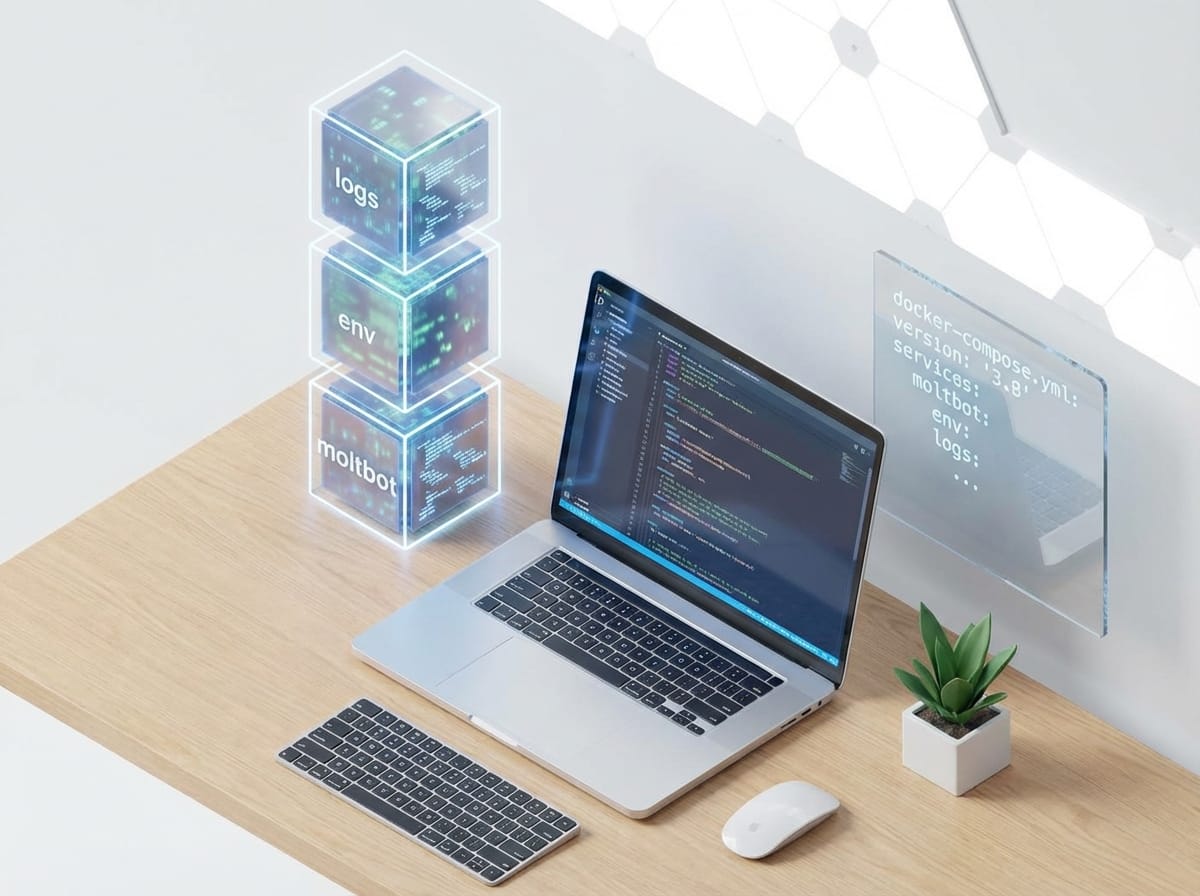
Imagine this: you finally decide to run Moltbot locally, in a clean little Docker container… and 20 minutes later you’re knee-deep in “it works on my machine” chaos. Sound familiar?
I’m firmly in the “Docker is worth it” camp for bots like this. Not because it’s trendy, but because it’s basically a shipping container for your app: everything it needs goes inside, and your laptop stays (mostly) un-haunted.
What you’re actually doing (in plain English)
You’re going to:
- Install Docker (the runtime that runs containers).
- Pull Moltbot’s code (or image, if they publish one).
- Provide config (usually API keys, tokens, env vars).
- Run it with docker compose so it restarts cleanly and doesn’t become a “one weird terminal tab” situation.
One quick reality check: “Moltbot” isn’t a single universally-standard package like Redis or Postgres. There are different repos/projects using that name. So the steps below are the exact Docker workflow you’ll use locally, with two paths:
- Path A (best): Moltbot publishes an official Docker image (you just run it).
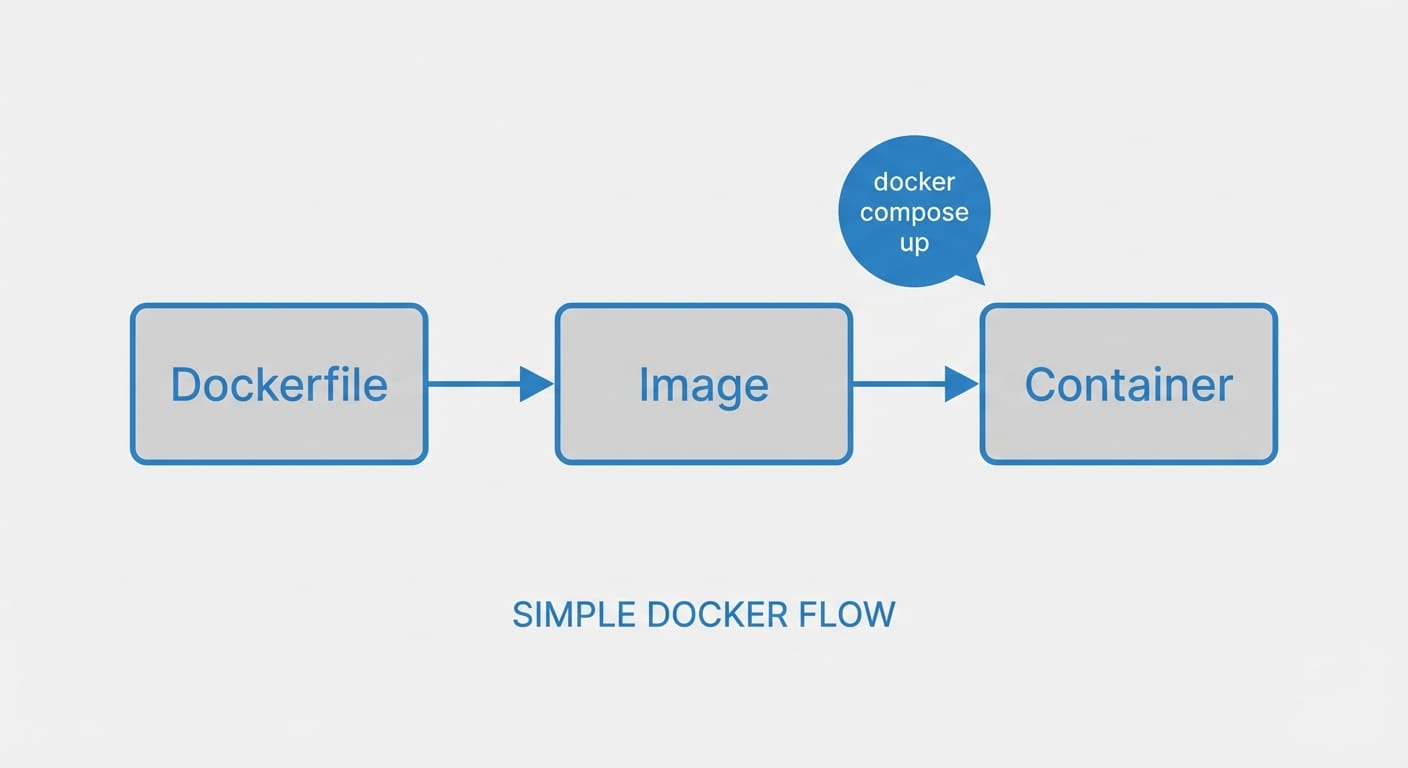
- Path B (common): You build an image from the project’s GitHub repo using a Dockerfile.
Step-by-step: Install Moltbot in Docker on your local PC
Step 0) Prereqs (don’t skip these)
- Windows/Mac: Install Docker Desktop.
- Linux: Install Docker Engine + Docker Compose plugin.
- Optional but recommended: Git, so you can clone the Moltbot repo.
Official Docker install docs are here (use these, not random blogs from 2019):
- Docker Desktop: https://docs.docker.com/desktop/
- Docker Engine (Linux): https://docs.docker.com/engine/install/
- Compose (overview): https://docs.docker.com/compose/
Verify Docker works:
docker --version docker compose version If those commands error out, stop and fix Docker first. Trust me—debugging Moltbot on top of broken Docker is like trying to fix a car while it’s on fire.
Step 1) Create a local folder for Moltbot
mkdir moltbot cd moltbot Step 2) Get Moltbot (two common options) Option A: Moltbot has a published Docker image If the Moltbot docs mention something like docker pull ... or a container registry (Docker Hub / GHCR), use it. Example pattern:
docker pull ghcr.io/OWNER/moltbot:latest Then you’ll wire it up with Compose in the next step.
Option B: Build Moltbot from source (most likely)
Clone the repo:
git clone https://github.com/OWNER/moltbot.git . Now look for one of these in the project root:
- Dockerfile (great—already container-ready)
- docker-compose.yml (even better)
- Neither (no worries, you’ll add them)
Step 3) Add a docker-compose.yml (cleanest way to run locally)
Create docker-compose.yml in your moltbot directory. Use this template and adjust the bits in ALL CAPS:
services: moltbot: # If you have a published image, use this: # image: ghcr.io/OWNER/moltbot:latest # If you're building locally from a Dockerfile, use this: build: . container_name: moltbot restart: unless-stopped env_file: - .env # If the bot exposes a web port (optional): # ports: # - "8080:8080" # If it needs to persist data/logs (optional): # volumes: # - ./data:/app/data Why Compose? Because running raw docker run ... commands is fine… until you forget the flags, lose the history, or you want to add a database later. Compose keeps your setup in one file. Docker literally recommends Compose for multi-container apps and repeatable setups. Source: Docker Compose docs.
Step 4) Create your .env file (where secrets go)
Create a file named .env next to your compose file. You’ll put Moltbot’s config in here (tokens, API keys, etc.). A typical bot might need:
# Example only — use the names from Moltbot's docs BOT_TOKEN=put-your-token-here LOG_LEVEL=info Important: don’t commit .env to Git. Add this to .gitignore:
.env Step 5) Build and run Moltbot If you’re using the local Dockerfile build:
docker compose up -d --build If you’re using a published image (and removed build: .):
docker compose up -d Check logs:
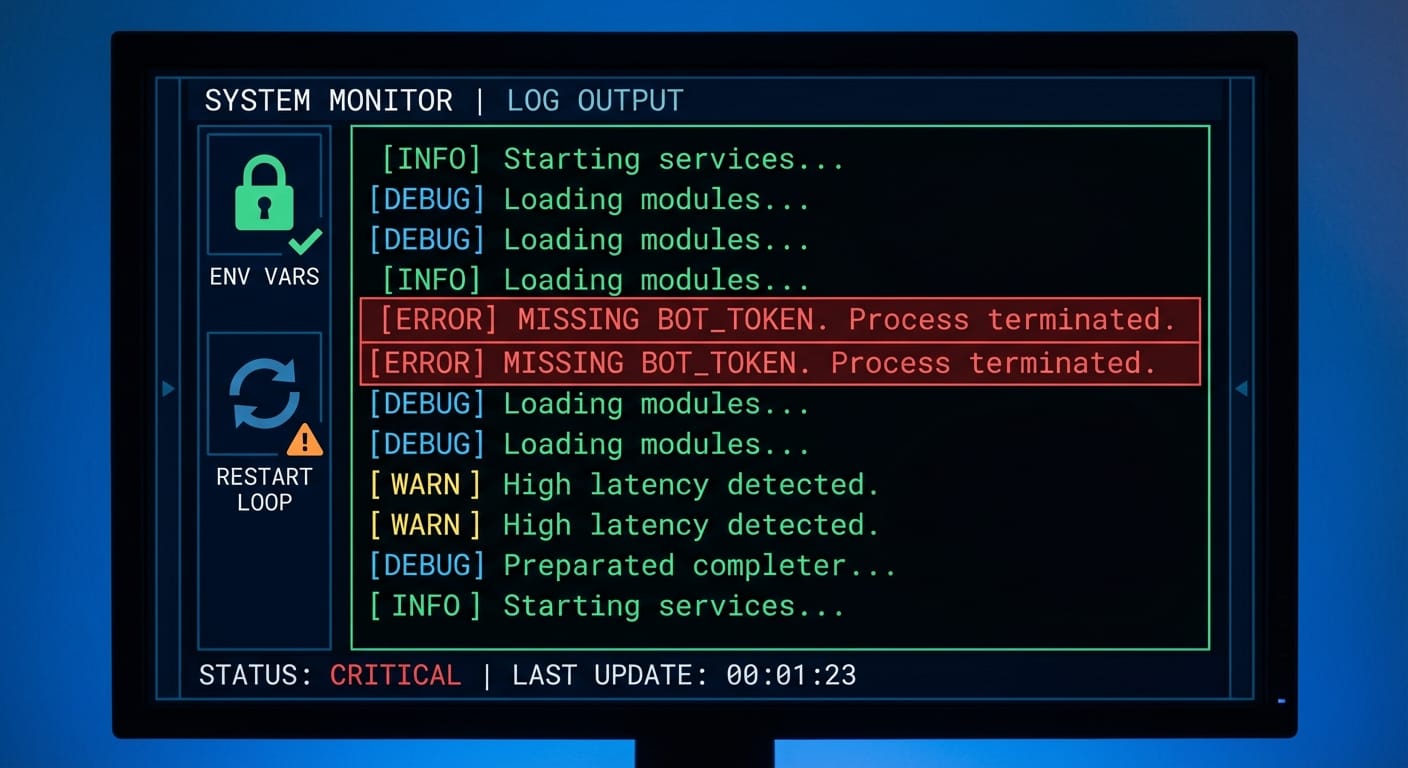
docker compose logs -f If it starts successfully, you’ll see it connect/authenticate/do whatever Moltbot does. If it crashes, logs will usually tell you exactly which env var you forgot. (It’s almost always an env var.)
Step 6) Basic “is it alive?” checks
- See containers: docker ps
- Inspect status: docker compose ps
- Stop it: docker compose down
- Restart it: docker compose restart
Common Mistakes (aka how people make Docker feel hard)
- Forgetting the .env file: container starts, immediately exits, logs show missing config.
- Wrong CPU architecture: Apple Silicon (ARM) trying to run x86-only images. If you see “exec format error,” that’s your clue.
- Not mapping volumes: you expect data to persist, but you rebuild and it’s gone. Containers are cattle, not pets.
- Binding ports you don’t need: if Moltbot is just a bot (no web UI), you may not need ports: at all.
- Running everything as root forever: not always avoidable, but it’s worth checking if the repo supports a non-root user.
Pro Tips Box (stuff I do every time)
- Name your container: you’ll thank yourself when debugging: container_name: moltbot.
- Use <code>restart: unless-stopped</code>: bots should come back after a reboot.
- Keep secrets in <code>.env</code>: don’t bake tokens into images. Ever.
- Pin versions: “latest” is a chaos gremlin. Use a specific tag when possible.
FAQ
Do I need Docker Desktop?
On Windows/Mac, yes—Docker Desktop is the easiest supported route. On Linux, you can run Docker Engine directly. Source: Docker Desktop docs.
How do I update Moltbot?
If you’re using an image: docker compose pull && docker compose up -d. If building from source: git pull && docker compose up -d --build.
How do I completely reset everything?
Run docker compose down, then delete any local ./data folder you mounted (if you used volumes). Be careful—this is the “factory reset” button.
Checklist: your local Moltbot Docker install
- [ ] Docker installed and running
- [ ] Moltbot repo cloned or image identified
- [ ] docker-compose.yml created
- [ ] .env created with required tokens/keys
- [ ] docker compose up -d --build runs clean
- [ ] Logs show Moltbot is connected and working
Action Challenge
Do this today: get Docker installed and run docker compose up -d even if Moltbot isn’t fully configured yet. Your only goal is to see the container start and read the logs. Once you’ve got that loop working, everything else is just swapping config values until it behaves.
Sources
- Docker Desktop documentation: https://docs.docker.com/desktop/
- Docker Engine installation (Linux): https://docs.docker.com/engine/install/
- Docker Compose documentation: https://docs.docker.com/compose/