Stop Babysitting a Mac Mini: Run Clawdbot on a VPS Instead
Running Clawdbot on a Mac mini works—until it becomes your part-time IT job. Here’s a practical VPS setup on Ubuntu with Node.js 22+, plus real use cases where 24/7 uptime actually matters.
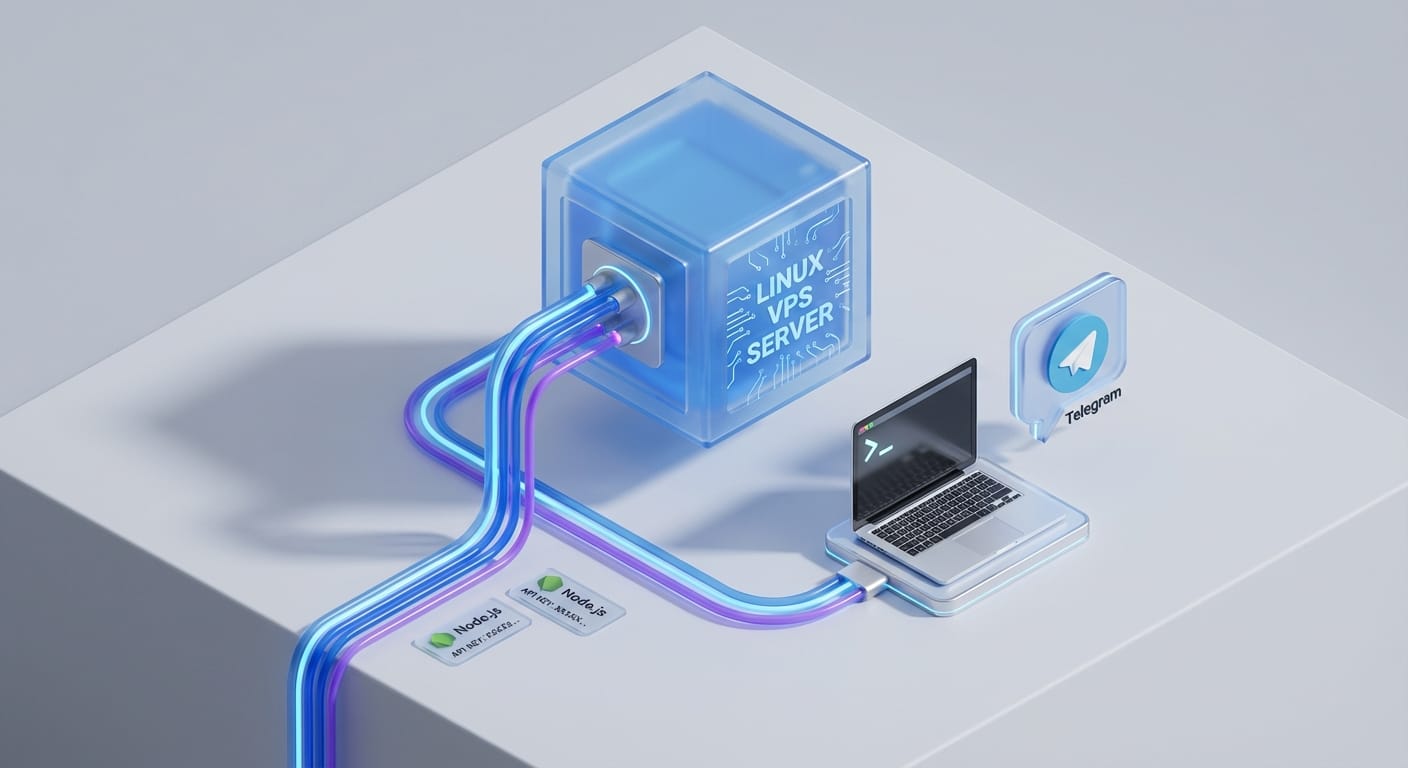
Hot take: if you’re running Clawdbot on a Mac mini because “that’s what everyone suggests,” you’re basically turning a cute little desktop into a 24/7 server. It works… until it doesn’t. Power blip, home internet hiccup, roommate unplugs it, macOS decides it’s update o’clock. You get the idea.
Here’s the thing… Clawdbot is already built like a Linux-first CLI tool. A VPS (virtual private server) is the boring, reliable, always-on home it wants. And honestly? Once you’ve done it once, you’ll never want to “host production” on something sitting next to your monitor again.
Mac mini vs VPS: what you’re really choosing
Let’s frame the decision like an adult (painfully, briefly):
- Mac mini = local hardware, local network, local problems. It’s great for tinkering, testing, and “I just wanna see it run.”
- VPS = remote Linux box with 24/7 uptime, a public IP, and the ability to scale without buying more stuff.
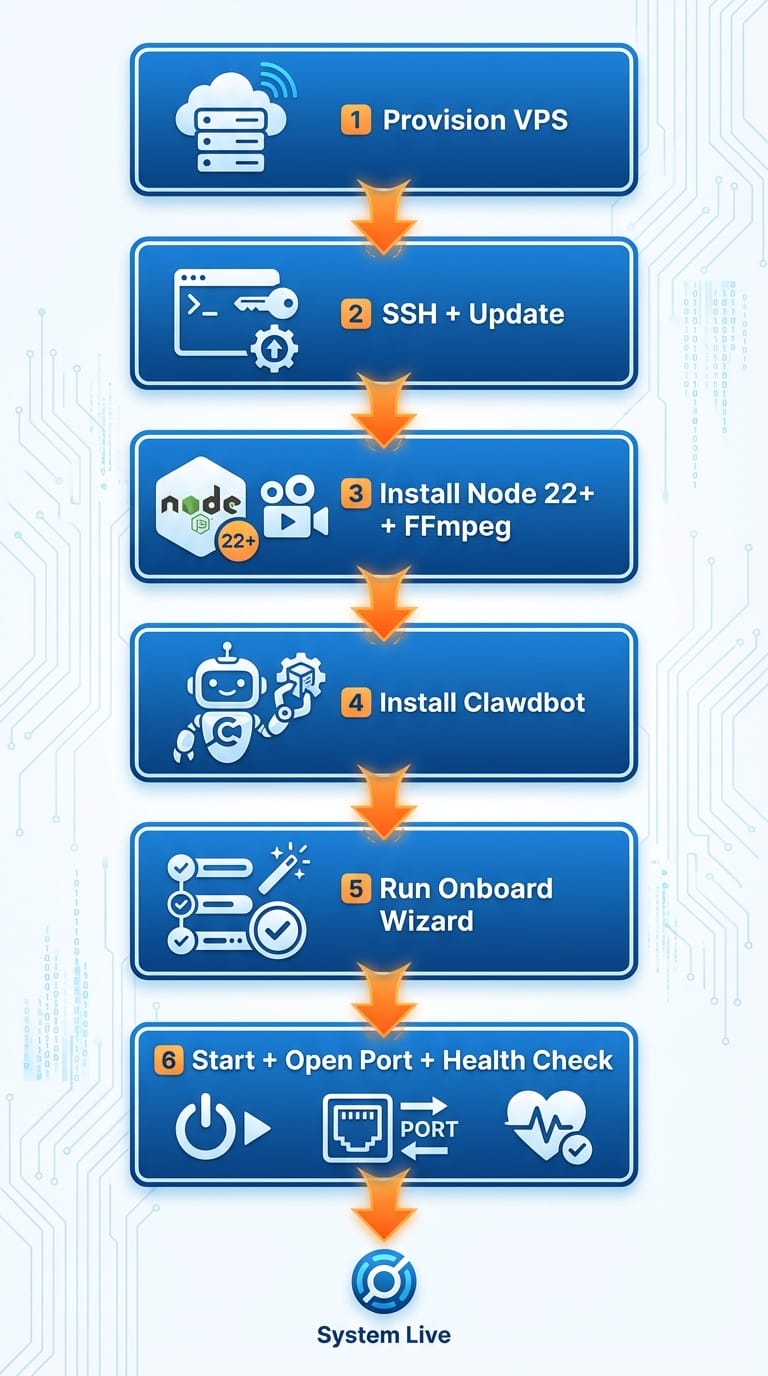
Most Clawdbot guides mention Mac minis because they’re easy to understand: plug it in, run the command, done. But operationally, a VPS wins for anything beyond “toy project.” You get:
- Always-on uptime (data centers are way better at electricity than your house)
- Remote access from anywhere via SSH
- Easy scaling (upgrade RAM/CPU in a few clicks)
- No hardware purchase (typical ranges: ~$5–$20/month)
The VPS setup (simple, repeatable, and boring—in a good way)
I’m going to assume you’re not trying to build a NASA launch system here. You just want Clawdbot working on a VPS with minimal drama.
Step 1) Provision a VPS
Pick a provider (VPS.one, LightNode, Hostinger—whatever you like). Choose:
- Ubuntu 22.04 or 24.04
- At least 2GB RAM (look, I’ll be honest… 1GB can work for some setups, but 2GB is where “reliable” starts)
- A public IP
Step 2) SSH in, update packages
ssh root@YOUR_VPS_IP sudo apt update && sudo apt upgrade -y Step 3) Install Node.js 22+ (and FFmpeg if you want voice/media features) Clawdbot is happiest on Node 22+.
curl -fsSL https://deb.nodesource.com/setup_22.x | sudo -E bash - sudo apt install -y nodejs ffmpeg git node --version Step 4) Install Clawdbot Use the official one-line installer command from the Clawdbot devs (it changes, so I’m not going to paste a stale one here). If you’re using npm globally, some installs may look like:
npm install -g clawdbot Step 5) Run the onboarding wizard This is where you connect the dots: model provider, API key, chat channel, and background mode.
clawdbot onboard Typical choices that work well:
- Quick start (unless you know you need a custom topology)
- Gateway mode: local
- AI provider: Anthropic (paste your API key)
- Model: Opus 4.5 (good “power vs cost vs latency” balance)
- Channel: Telegram (create a bot with @BotFather, grab token; get your user ID via @user_id_bot)
- Daemon mode (this is the 24/7 secret sauce)
Step 6) Start it, open the firewall, and check health
If your setup uses the dashboard port (commonly 18789), allow it:
ufw allow 18789 Then start and verify:
clawdbot start clawdbot health Dashboard usually lives at:
http://YOUR_VPS_IP:18789 Here’s what most people miss… reboot the VPS once after enabling daemon mode. If it comes back up and Clawdbot is still healthy, you’re done. If it doesn’t, you didn’t really set up “24/7,” you set up “until next reboot.”
Common mistakes (don’t do these)
- Running everything as root forever: It’s convenient, but it’s not great hygiene. Create a non-root user once you’re stable.
- Picking a 1GB VPS: It’ll run until memory pressure hits—then you’ll blame Clawdbot when it’s really your tiny server.
- Forgetting FFmpeg: If you try voice/media features without it, you’ll spend an hour debugging something you could’ve installed in 10 seconds.
- Leaving ports wide open: Only open what you need (and consider IP-restricting the dashboard if you can).
Use cases that actually justify a VPS
Ok, so why go through the trouble? Because a VPS turns Clawdbot from a “neat demo” into a dependable little worker.
1) Personal automation that doesn’t sleep
Daily reminders, scheduled check-ins, recurring tasks, lightweight life-admin. A Telegram bot that pings you at 7:30am every day is way less magical when it stops working because your laptop went to sleep.
2) Background monitoring and alerts
Want a bot that monitors something (site uptime, a price threshold, a cron job result) and messages you if it changes? A VPS is perfect: always reachable, always running, not dependent on your home network.
3) AI research/testing without hijacking your main machine
Running experiments, prompt tests, long-running agent workflows—these are the things that make your computer feel “slow and haunted.” Put them on a VPS and keep your local machine for actual work.
4) Voice + media processing workflows
With FFmpeg installed, you can do transcription-style pipelines, audio conversions, or media prep tasks that pair nicely with an AI bot. It’s not glamorous, but it’s ridiculously useful.
5) Prototyping integrations
Need to connect Telegram/Discord workflows, run small scripts, wire up webhooks, or test a toolchain? A VPS gives you a clean environment where you can break things without breaking your day.
FAQ
Do I need a powerful VPS?
No. Start with 2GB RAM on Ubuntu 22.04/24.04 and scale up if you’re doing heavier workflows.
Is a VPS cheaper than a Mac mini?
In most cases, yes—especially if you’re only using it for one bot. VPS plans commonly land around $5–$20/month, versus buying and maintaining hardware.
Will it run 24/7 automatically?
Yes, if you enable daemon mode during onboarding and confirm it survives a reboot.
Do I really need to open port 18789?
Only if you’re using the dashboard on that port. If you don’t need the dashboard externally, don’t expose it.
What’s next
The bottom line is… if you want Clawdbot to be reliable, treat it like a service, not a pet. Put it on a VPS, enable daemon mode, and stop wondering whether your “server” is asleep.
Next step? Once it’s running, pick one use case (like a Telegram daily briefing or uptime alerts) and ship it. Because the real magic isn’t “it runs.” It’s “it keeps running.”
Sources
- Clawdbot official documentation / installer instructions (referenced via official dev-provided installer command)
- Ubuntu + Node.js 22 setup approach via NodeSource Node.js repository documentation: https://github.com/nodesource/distributions
- Ubuntu UFW firewall documentation: https://help.ubuntu.com/community/UFW
- Provider guidance examples for VPS provisioning (Ubuntu images, credentials delivery): Hostinger VPS docs https://www.hostinger.com/tutorials/vps
- General VPS value props (uptime, scalability, remote access) discussed across common hosting provider docs (see Hostinger above; similar notes in LightNode docs: https://www.lightnode.com/)