Using ClawdBot: the self-hosted AI assistant that actually respects your privacy
A practical, no-drama guide to setting up ClawdBot, connecting it to chat apps, and turning on the right skills without wrecking your weekend.

Imagine this: your AI assistant lives on your server, chats with you in Telegram like a normal human, and quietly handles the boring stuff (briefings, reminders, inbox triage) without shipping your life story to five different SaaS dashboards. Sounds nice, right?
That’s basically the pitch for ClawdBot: a self-hosted, privacy-focused AI assistant that connects to messaging apps (Telegram, Discord, Slack, WhatsApp, etc.) and does proactive work via agents, skills/plugins, memory, and a gateway. It can run on a cheap server (think $5/month) and talk to multiple models—Claude, GPT-4, or local models via Ollama—depending on what you’re optimizing for: quality, cost, or privacy. (Sources)
The real problem: AI helpers are great… until they get nosy
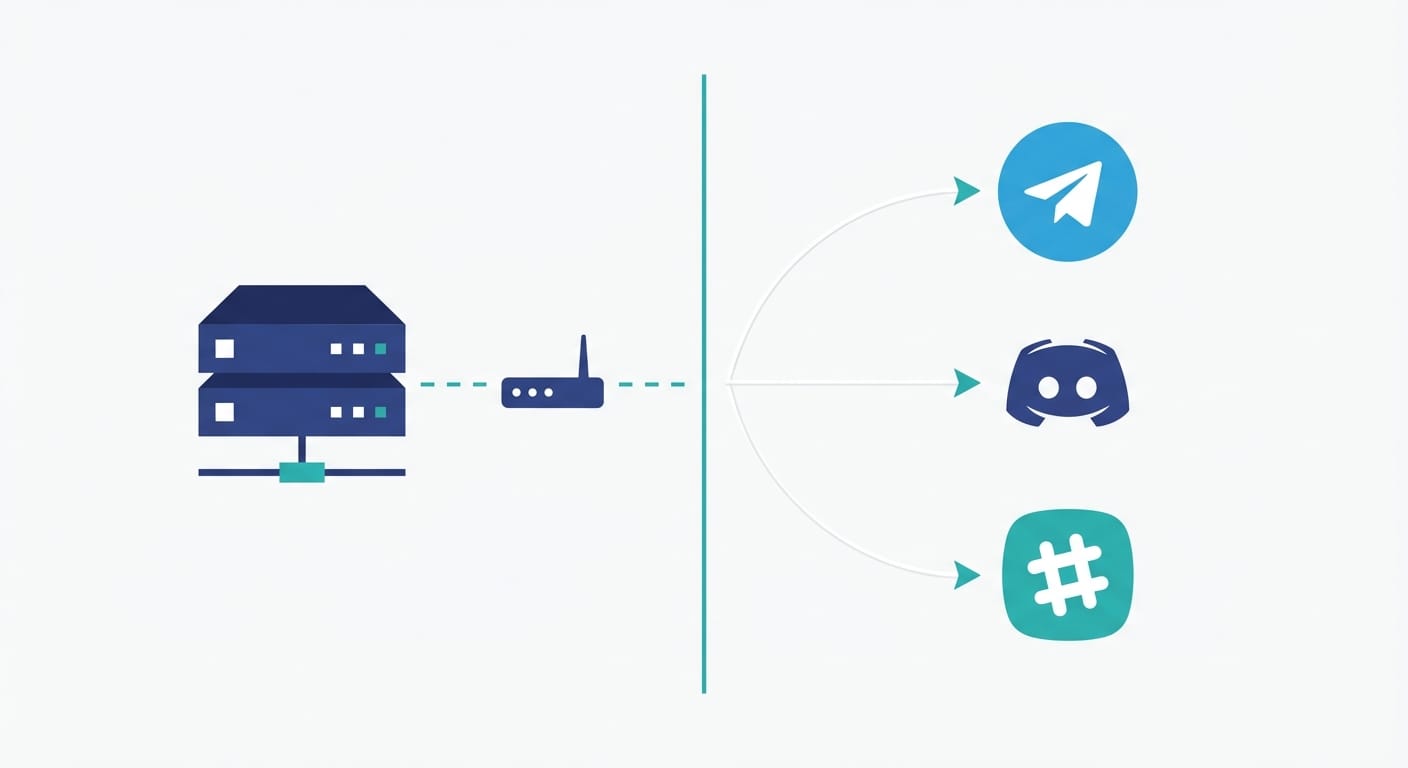
I like AI assistants. I also like not leaking my calendar, inbox, and half-finished startup ideas into the cloud for eternity. The typical setup today is: you paste credentials into a third-party automation tool, wire it to a model, then hope nothing weird happens.
ClawdBot’s angle is refreshing: it’s built to run on your infrastructure with sandboxed execution, access controls, and trust boundaries—so you can automate real actions (scripts, email, calendars, web browsing) without giving a random hosted service the keys to your kingdom. (Sources)
How ClawdBot works (in human terms)
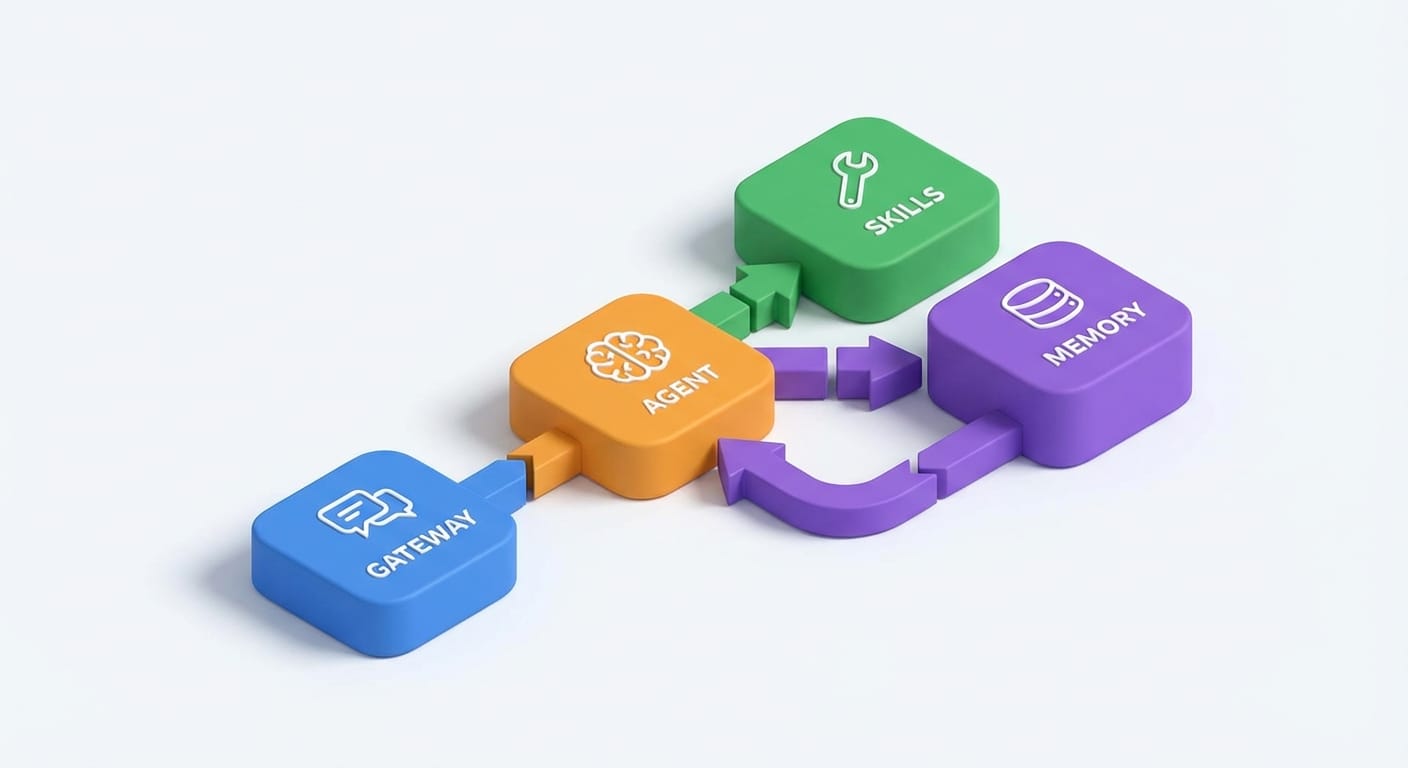
ClawdBot has four “big Lego bricks” that snap together:
- Gateway: the switchboard. It connects to Telegram/Discord/etc., handles scheduling (cron-like briefings), and receives messages.
- Agent: the brain. This is where your chosen model runs (Claude, GPT-4, Gemini, local via Ollama, etc.).
- Skills/Plugins: the arms and legs. Web search, browser control, email/calendar, voice calls, running scripts—plus community plugins from ClawdHub.
- Memory: the long-term “notes.” It uses vector search with SQLite indexing to keep context across sessions and projects.
Think of it like this: the gateway is the receptionist, the agent is the manager, skills are the specialist staff, and memory is the filing cabinet that doesn’t “forget” every time you leave the room.
Step-by-step: getting ClawdBot running (without losing a weekend)
Here’s my practical path. No heroics required.
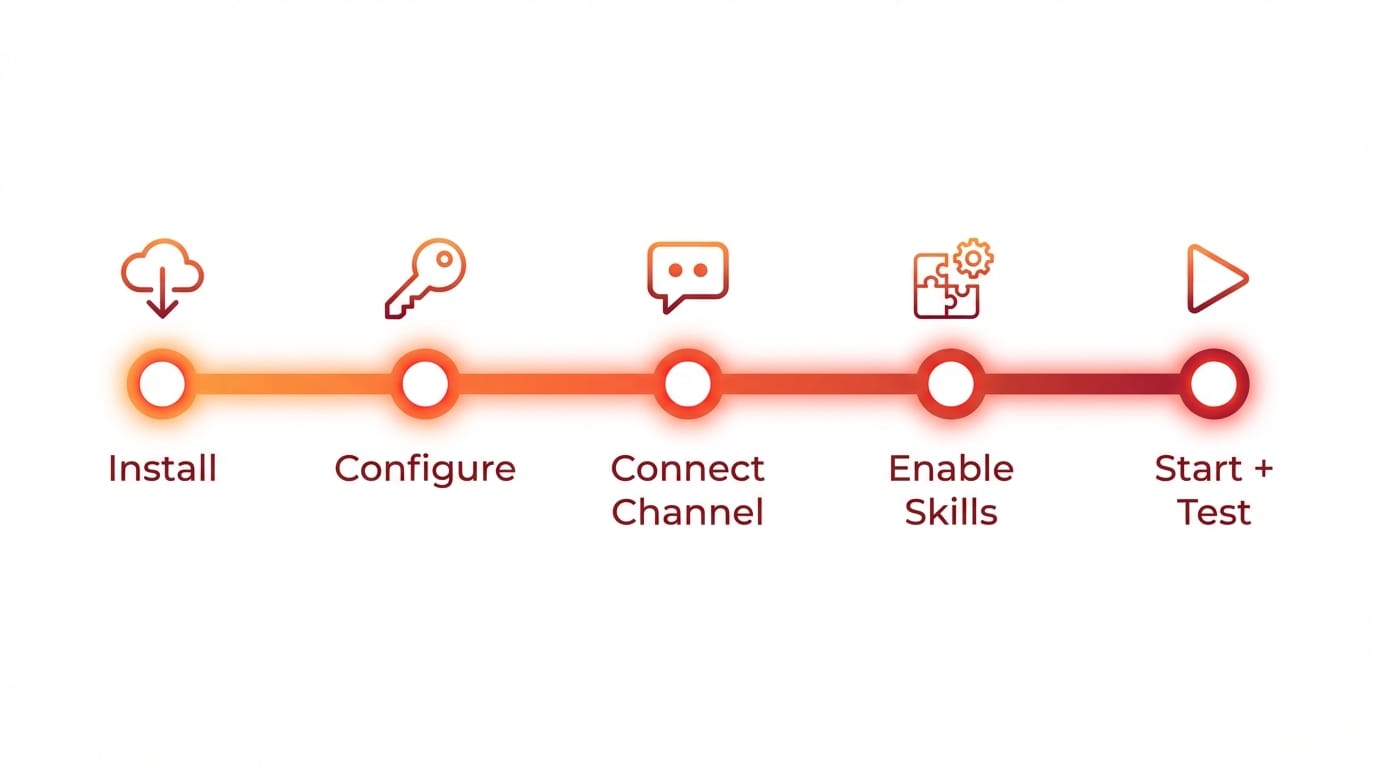
1) Install it (clone or grab a release)
Start with the repo:
git clone https://github.com/clawdbot/clawdbot ClawdBot ships binaries for macOS and Linux, plus a CLI/TUI so you can manage it without duct-taping a web UI together. Check the latest release notes—recent versions include breaking config changes that are handled via migration. (Sources)
2) Run the config wizard (this is where the magic happens)
Then run:
clawdbot configure This is where you add API keys for the model(s) you want, and optional web tooling keys like Brave Search for web_search/web_fetch. You can also configure sections individually (example: --section web). (Sources)
3) Pick your “channel” (Telegram/Discord/etc.)
ClawdBot connects through channels. Newer versions renamed “providers” to channels.* (like channels.telegram). If you’re upgrading from an older config, it’ll auto-migrate legacy keys, but still—don’t ignore the release notes. “It worked yesterday” is not a deployment strategy. (Sources)
4) Enable tools + plugins (start small)
Out of the box, web_fetch is enabled by default. Add more skills/plugins as you need them—email/calendar, browser automation, voice calling (Twilio/Plivo), Matrix plugin, custom HTTP hook integrations, etc. You can install community skills from ClawdHub or roll your own. (Sources)
5) Start it, then sanity-check in the TUI
Fire it up via the CLI/TUI, then use commands like /models and /settings to switch models and tweak behavior. The TUI shows spinners, errors, overlays, and command menus, so troubleshooting doesn’t feel like staring into the void. (Sources)
Once it’s running, talk to it inside your chosen chat app. Pro tip: in Telegram it can aggregate message fragments into a single prompt/response, which is great if you type like I do (three half-thoughts, one complete idea). (Sources)
Pro Tips Box (stuff I’d tell a friend over coffee)
- Go local when it matters: use Ollama/local models for sensitive workflows, and switch to Claude/GPT-4 for “big brain” tasks. ClawdBot makes model switching straightforward. (Sources)
- Use memory like a project notebook: feed it preferences, ongoing tasks, and “rules” for recurring work. The SQLite-backed vector search is perfect for this. (Sources)
- Start with web tools: web_search + web_fetch deliver instant value before you ever grant script/terminal permissions. (Sources)
- Lock down execution early: sandbox + permissions are your safety rails. Add power slowly, like you’re giving car keys to a teenager.
Common mistakes (don’t do these)
- Turning on every plugin day one: You’ll spend more time debugging than benefiting. Add one capability, test it in chat, then move on.
- Ignoring the “channels” rename: Recent updates moved config from “providers” to channels.*. It auto-migrates, but you still want to verify. (Sources)
- Over-trusting terminal/script access: Yes, it can run scripts and manage workflows. No, you shouldn’t let it freehand your production server without tight permissions. (Sources)
- Not leaving workspace headroom: Some advanced features need writable workspaces and room for memory compaction. If your disk is always at 99%, you’re gonna have a bad time. (Sources)
Case study snippet: “Daily briefing + inbox cleanup” (a realistic starter workflow)
Let’s say you want a daily Telegram briefing that doesn’t just regurgitate headlines.
- Gateway schedules a morning job (like a cron briefing).
- Agent uses your chosen model (Claude/GPT-4/local) to draft the briefing.
- Skills run web_search/web_fetch to grab sources, and optionally email/calendar skills to add today’s meetings.
- Memory stores your preferences: “No crypto news,” “Focus on AI + startups,” “Keep it under 12 bullets.”
- Telegram channel delivers it—clean, readable, and actually customized.
This is the kind of automation I’m bullish on: small, consistent wins that compound. Not flashy demos. Just less mental clutter.
Sources
- [1] ClawdBot GitHub release notes v2026.1.23 (Jan 23, 2026) — installation, channels migration, tools/plugins, TUI updates.
- [2] ClawdBot product docs/overview — self-hosting, proactive workflows, “agents + skills + memory” framing.
- [3] ClawdBot security documentation — sandboxed execution, policy enforcement, trust boundaries.
- [4] ClawdBot memory + proactive tasks documentation — vector search memory, briefings, alerts, workflows.
- [5] ClawdBot architecture docs — gateway/agent/skills/memory components.
- [6] ClawdBot plugins + ClawdHub docs — web tools, voice, email/calendar, HTTP hooks, extensibility.
- [7] ThursdAI deep dive video (Jan 22, 2026) — customization walkthrough.
Action challenge
Pick one channel (Telegram is the easiest on-ramp), enable web_fetch, and set up a single daily briefing that you actually want to read. Give it three preference rules in memory. Run it for a week.
If that doesn’t save you time (or at least reduce the “what should I do today?” fog), you can uninstall it with zero guilt. But I’m betting you won’t.